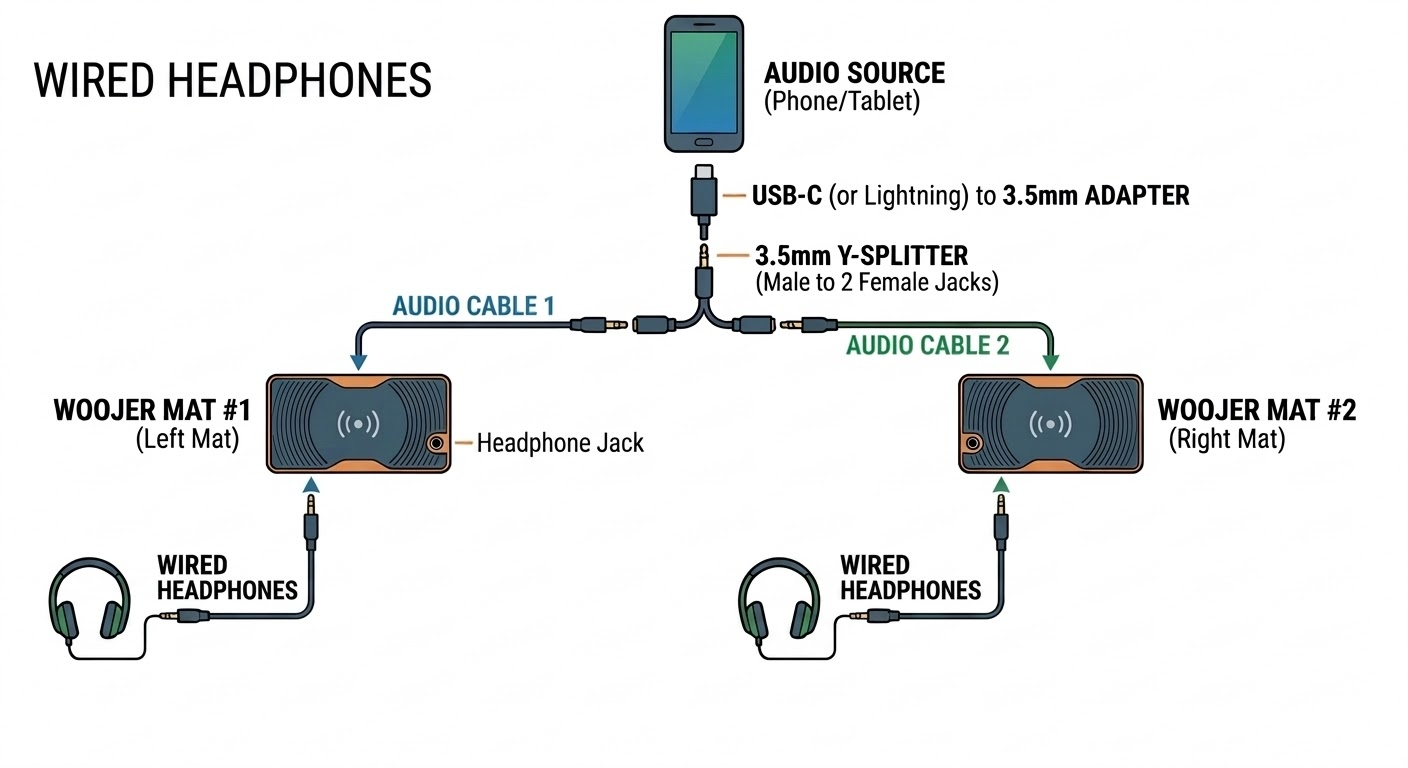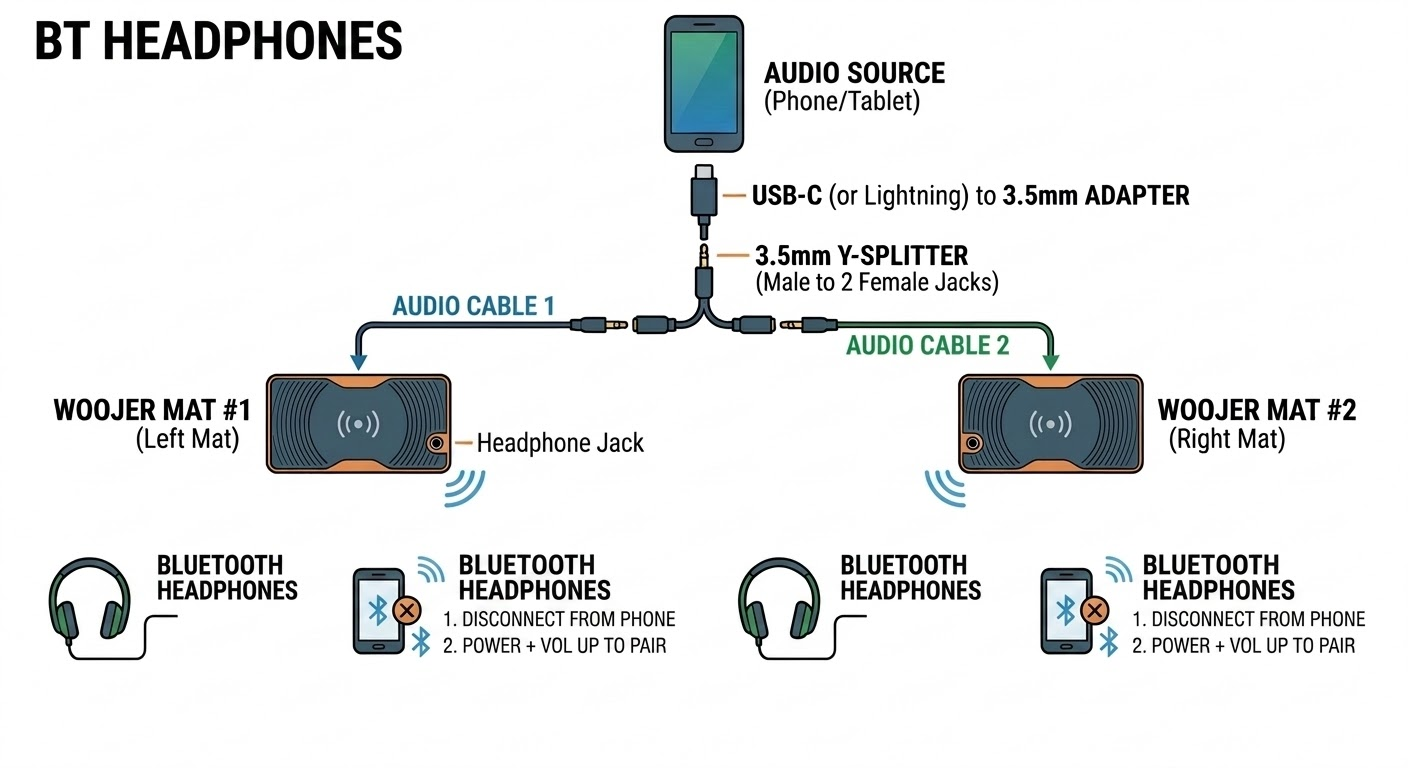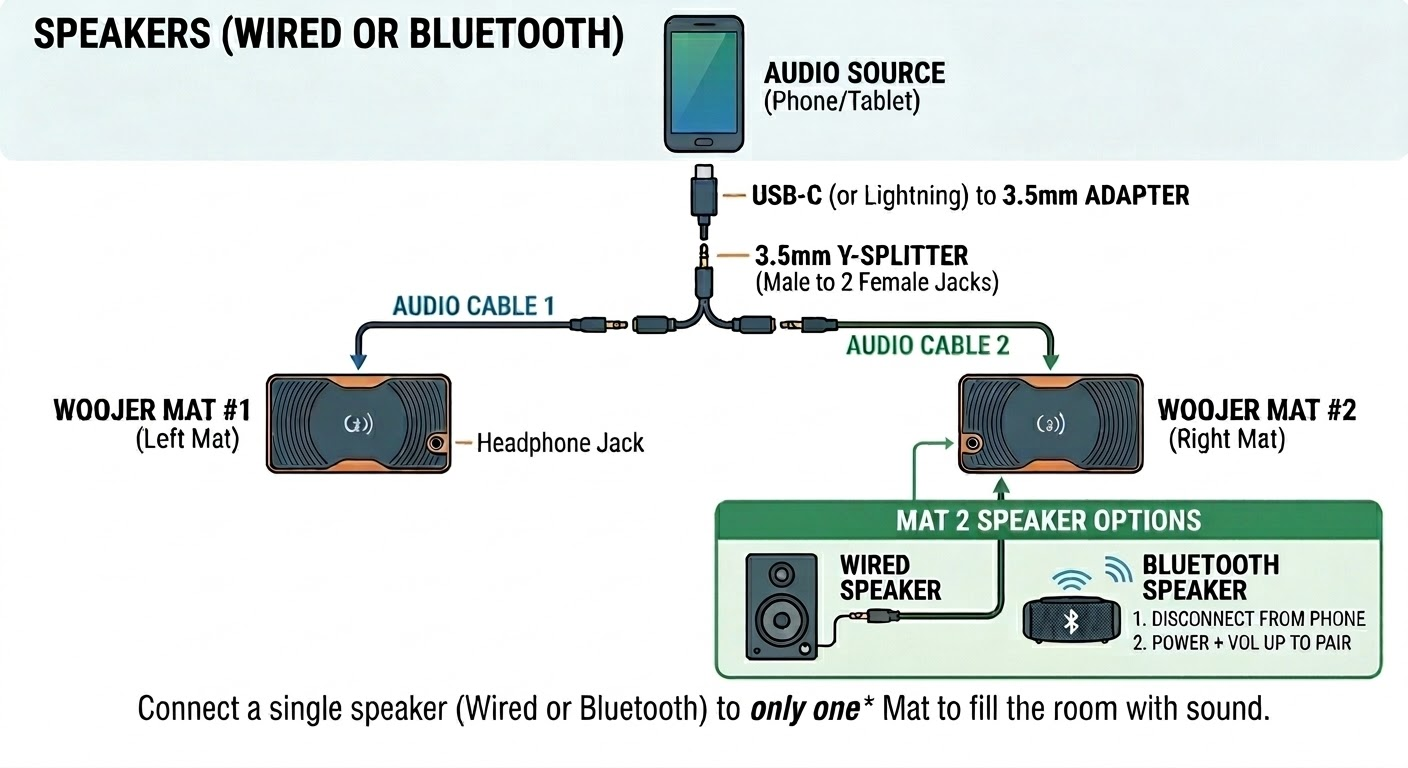
This guide ensures a perfectly synchronized experience for two people sharing the same space (like a bed or couch) using one audio source (Phone or Tablet). Because timing is essential for shared immersion, a wired connection for the source is required to eliminate lag.
See detailed diagrams below for several connection options
Part 1: Connecting the Audio Source
Most modern mobile devices do not have a headphone jack. To link your device to two Mats simultaneously, you will need a small "chain" of adapters.
What You’ll Need:
USB-C (or Lightning) to 3.5mm Adapter: To get audio out of your phone/tablet.
3.5mm Y-Splitter: To turn that one output into two.
Two 3.5mm Audio Cables: To reach from the splitter to each Mat.
The Connection Steps:
The Adapter: Plug your USB-C to 3.5mm adapter into your phone or tablet.
The Splitter: Plug the 3.5mm Y-Splitter into that adapter.
To Mat A: Plug the first audio cable into the splitter and the other end into the Audio-In port of Mat #1.
To Mat B: Plug the second audio cable into the other side of the splitter and the other end into the Audio-In port of Mat #2.
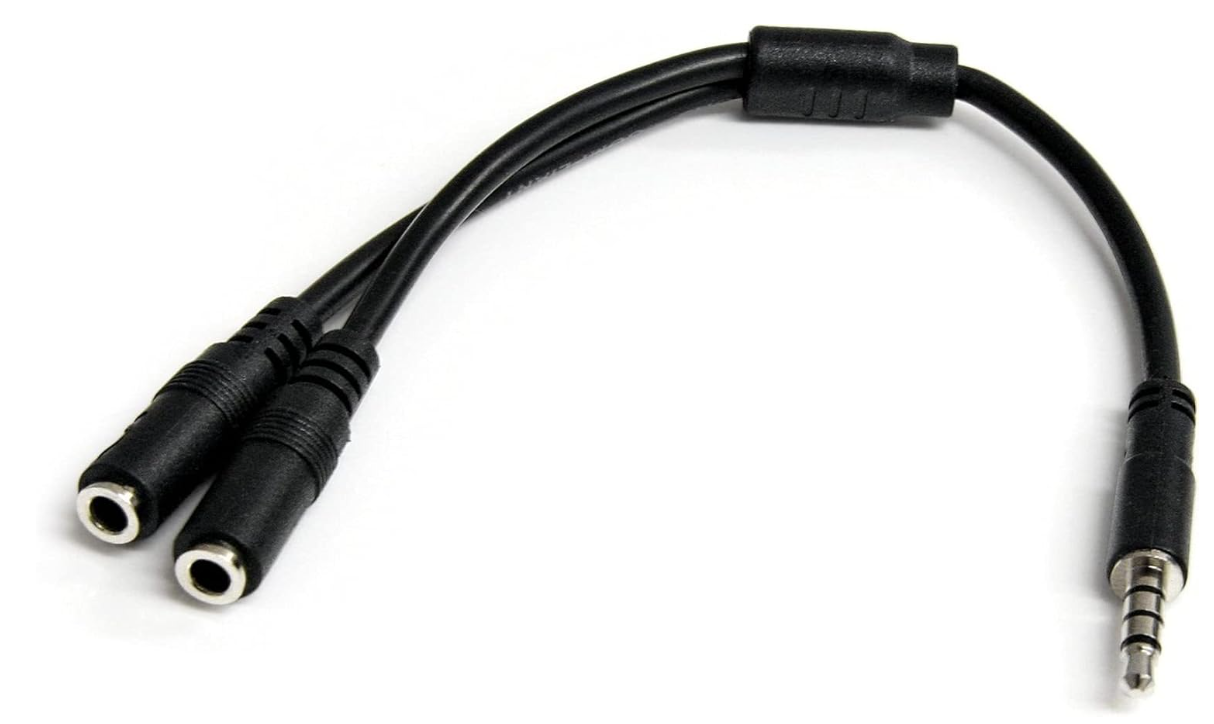
Audio Y-Splitter
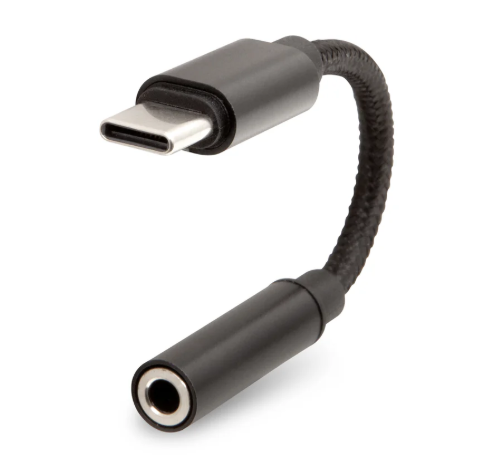
USB-C to 3.5mm Adapter
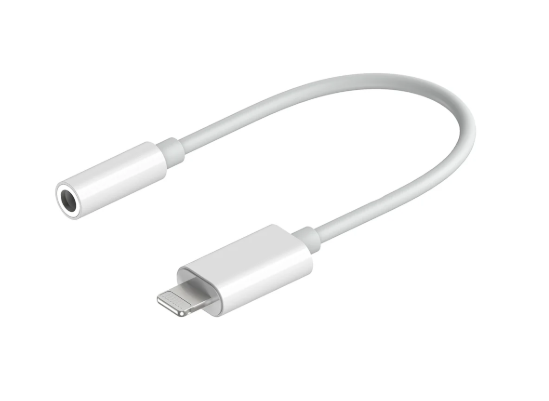
Lightning to 3.5mm Adapter
Part 2: Connecting Headphones or Speakers
Once the Mats are receiving the signal, choose how you want to hear the sound.
Option A: Headphones (Wired or Bluetooth)
Repeat these steps for each Mat so both users are connected.
Wired: Simply plug your headphones into the Headphone Jack on the side of your Mat.
Bluetooth:
1. IMPORTANT: Manually DISCONNECT your headphones from your phone's Bluetooth settings first. Do not "Unpair", just disconnect so the phone doesn't "hijack" the connection.
2. Put your headphones in Pairing Mode.
3. On the Woojer Mat, press and hold the Power button and the Volume Up (+) button together until the LED blinks red and blue.
4. When the Mat's LED stops blinking and stays solid, you are connected.
Option B: Using Speakers (Wired or Bluetooth)
If you prefer to fill the room with sound instead of using headphones, you can connect a speaker.
Note: To avoid "echo" or overlapping sound, the speaker should be connected to only ONE of the two Mats.
Wired Speaker: Plug the speaker's 3.5mm cable into the Headphone Jack of either Mat.
Bluetooth Speaker: Follow the same pairing steps as the "Bluetooth Headphones" above, using only one Mat to pair with the speaker.
Note: This headphone/speakers pairing process can also be done using the Woojer Device Manager app.
Quick Control Reference
To get the best experience, manage your levels as follows:
Audio Source (Phone/Tablet): Must be set to MAX (100%) volume. This ensures the Mat receives enough signal to vibrate properly.
Headphone Volume: Each Mat controls its own headphone/speaker volume using its (+) and (-) buttons.
Sensation Level: Each Mat controls its own vibration strength using its Up and Down buttons.
Connection diagrmas: