
How to Prevent iOS from Interrupting Your Woojer MAT
Apple's iOS treats incoming cell signals as a priority over everything else. The moment a call hits your device, the system intentionally forces your music to pause or dim to ensure you don't miss the call. Apple has engineered this system layout strictly to be a "phone first, media player second" device.
Because Apple does not offer a simple toggle switch that says "keep playing music during incoming calls," you have to outsmart the operating system.
If you want to keep listening to music but don't want an incoming call to abruptly pause your music and take over your entire screen, you can use a customized Focus Mode.
By default, even when Do Not Disturb is on, it might let calls from your "Favorites" through, which will pause your music. You must explicitly block everyone to preserve your audio.
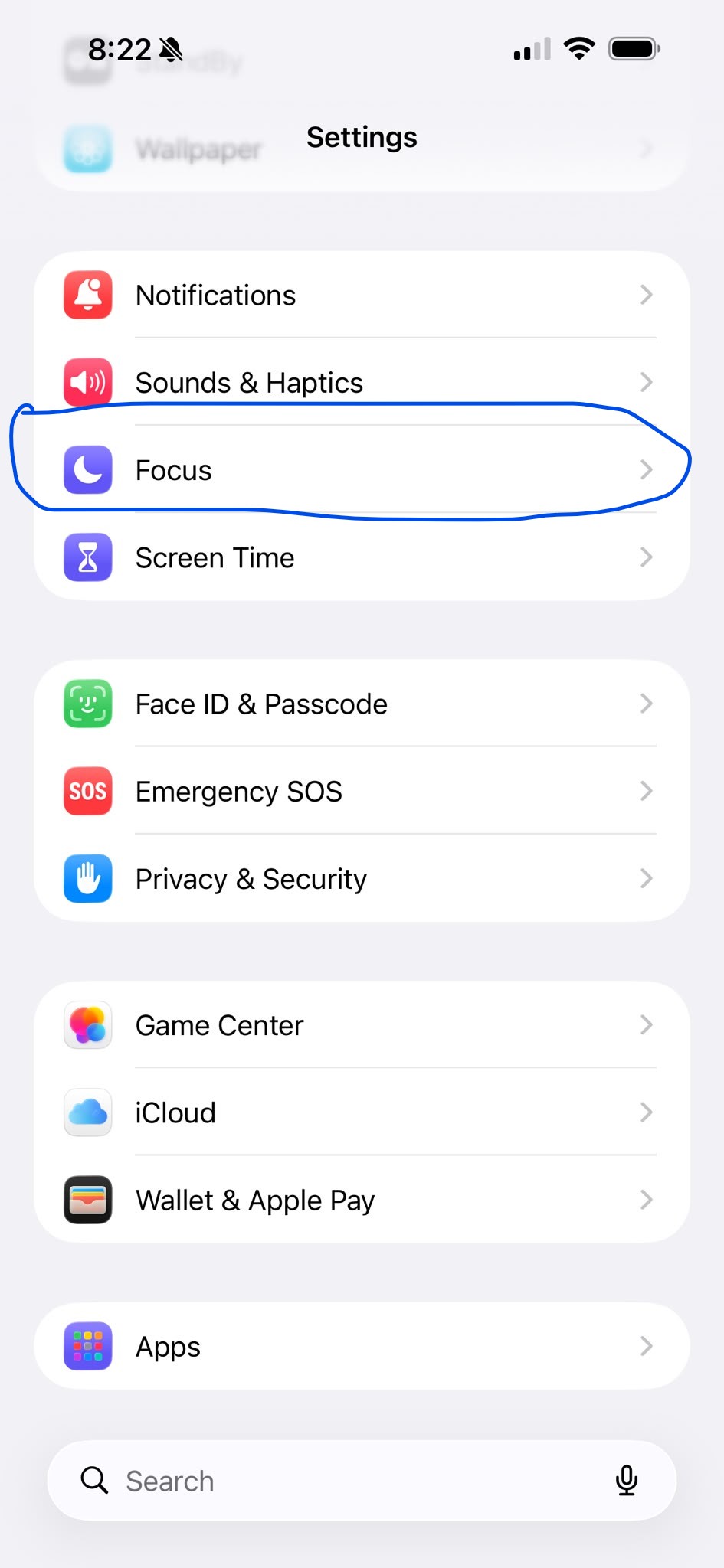
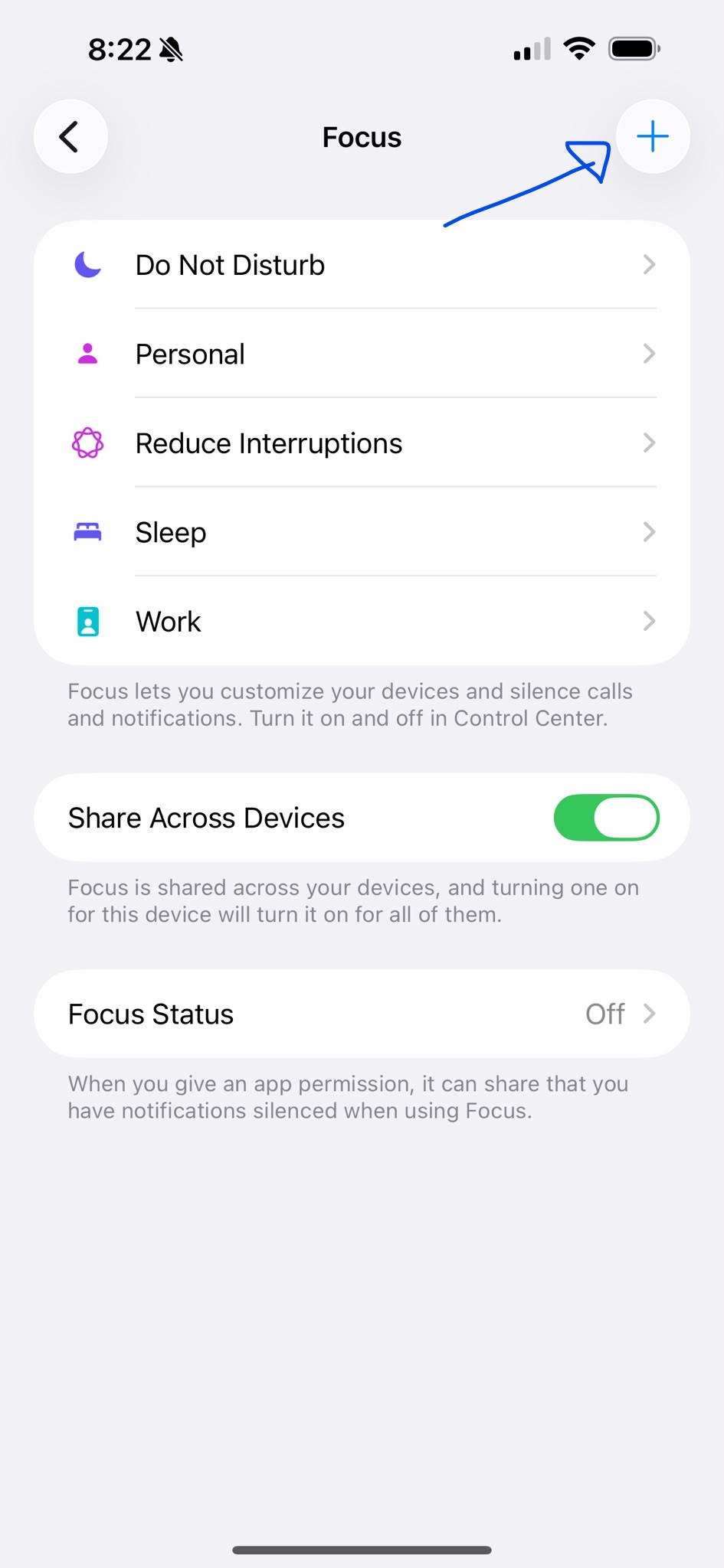
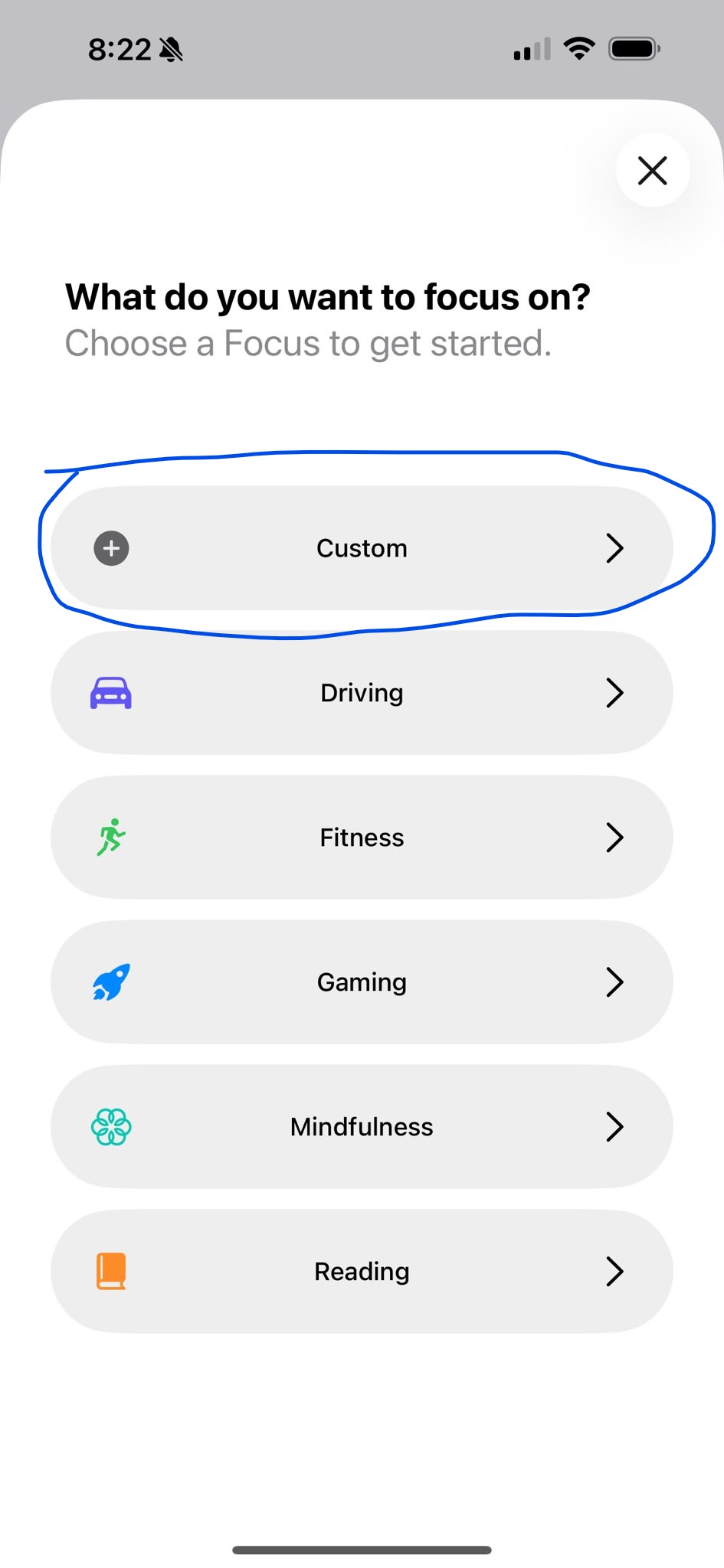
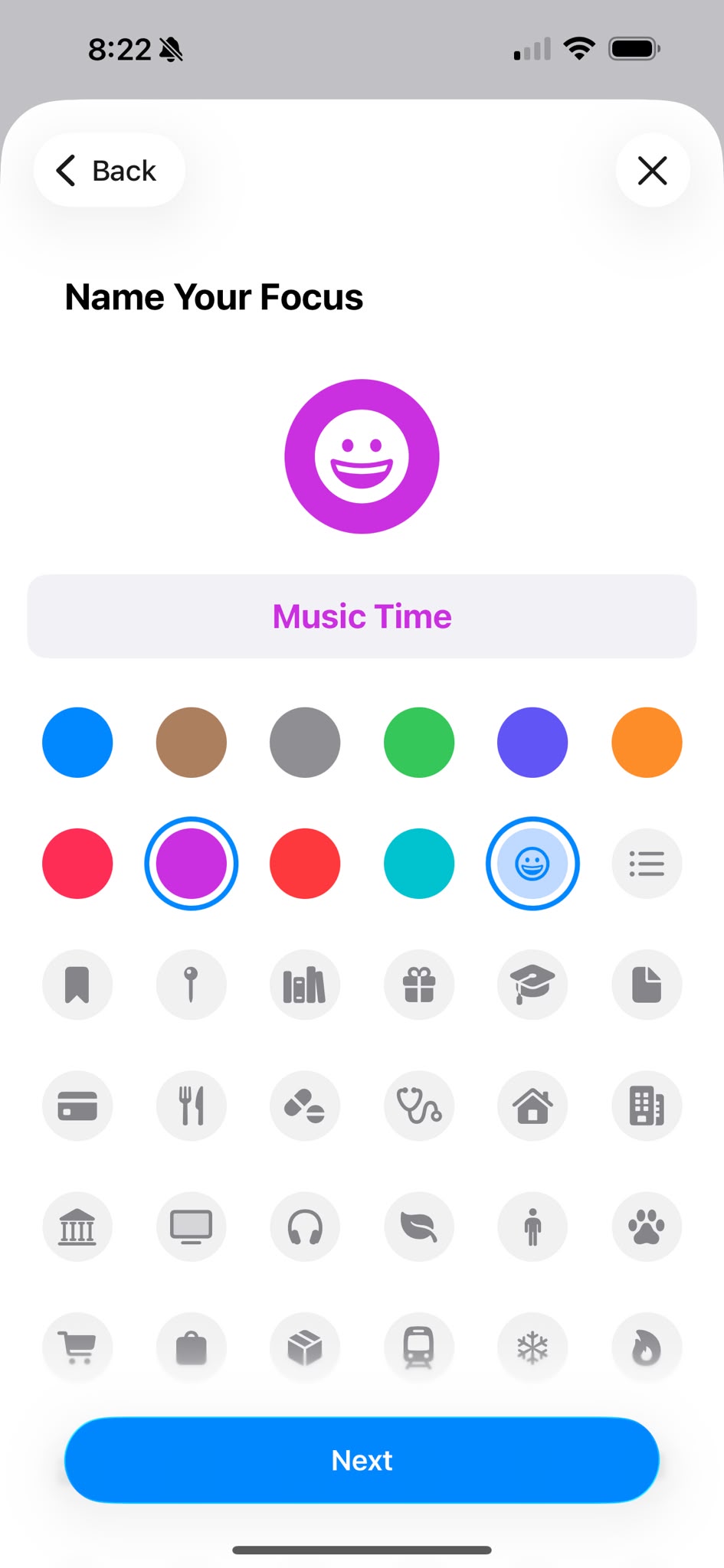
Open Focus Settings (Prerequisite): Go to Settings > Focus and select the + icon in the top right to create a custom "Music Time" Focus:
Lock Down Allowed People (Critical Step): Tap on People. Under "Silence Notifications From", make sure People You Choose is selected, but do not add anyone to the list. Also, in "Allow Notifications From", set "Allow Calls From" to "Allowed People Only":
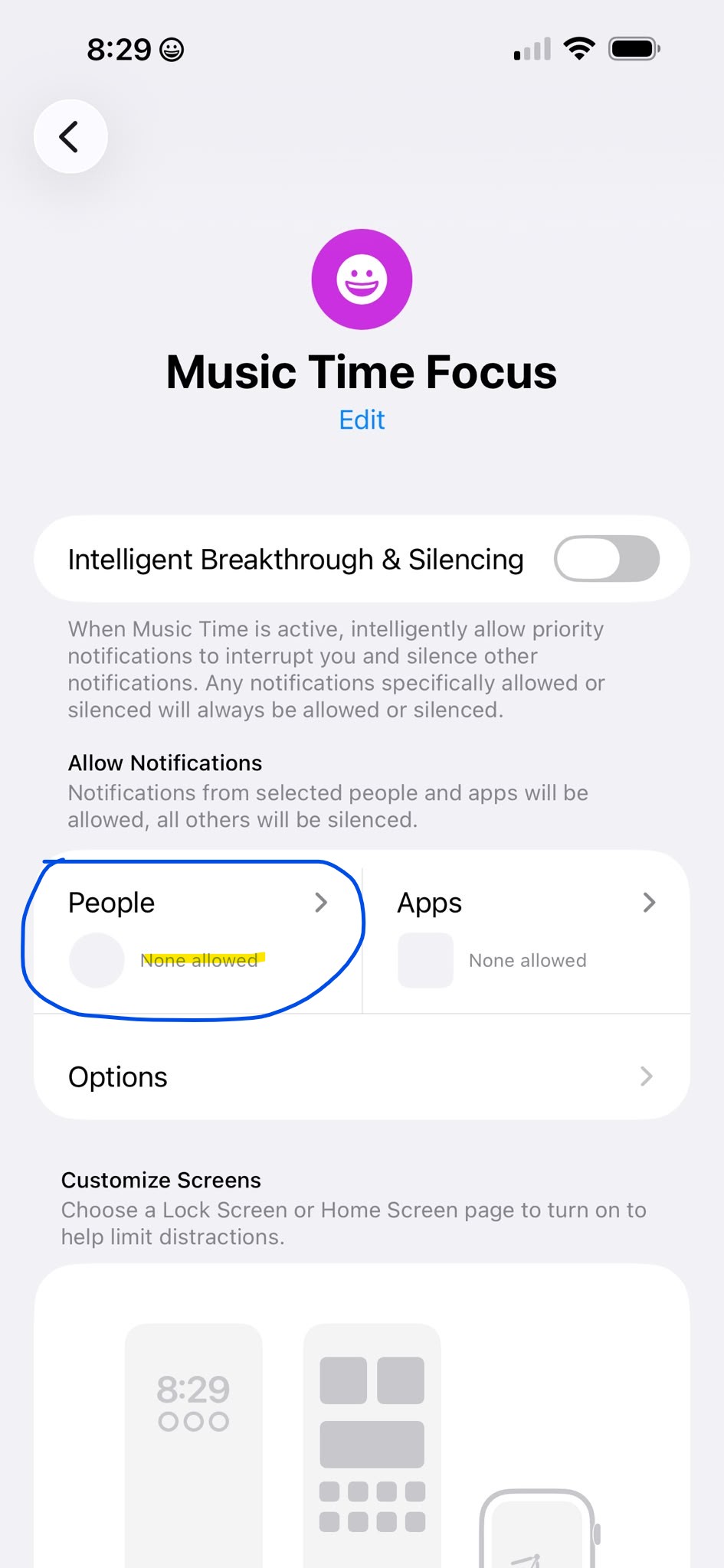
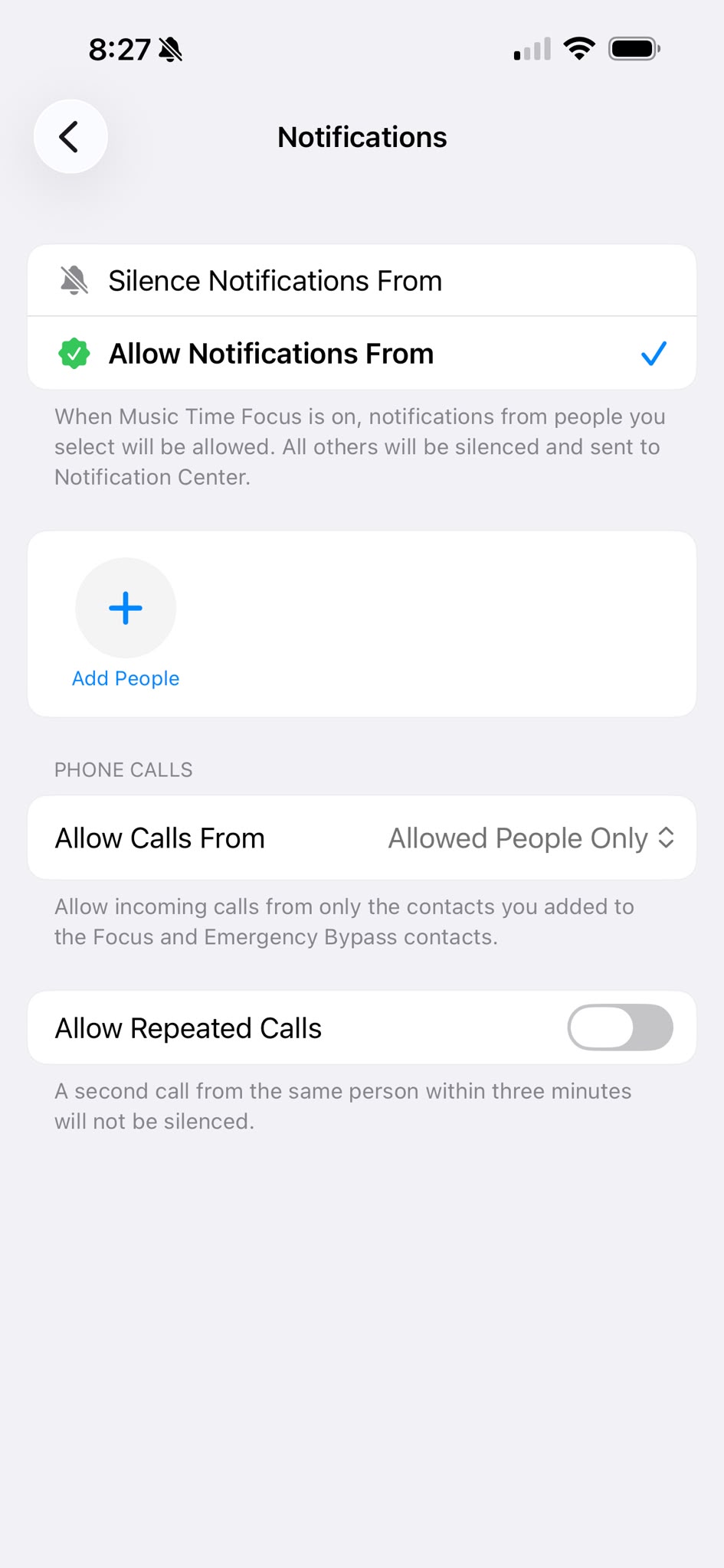

Silence the Phone App (System Override): Go back to the main Focus screen and tap Apps. Ensure the Phone app is not allowed to bypass this Focus:
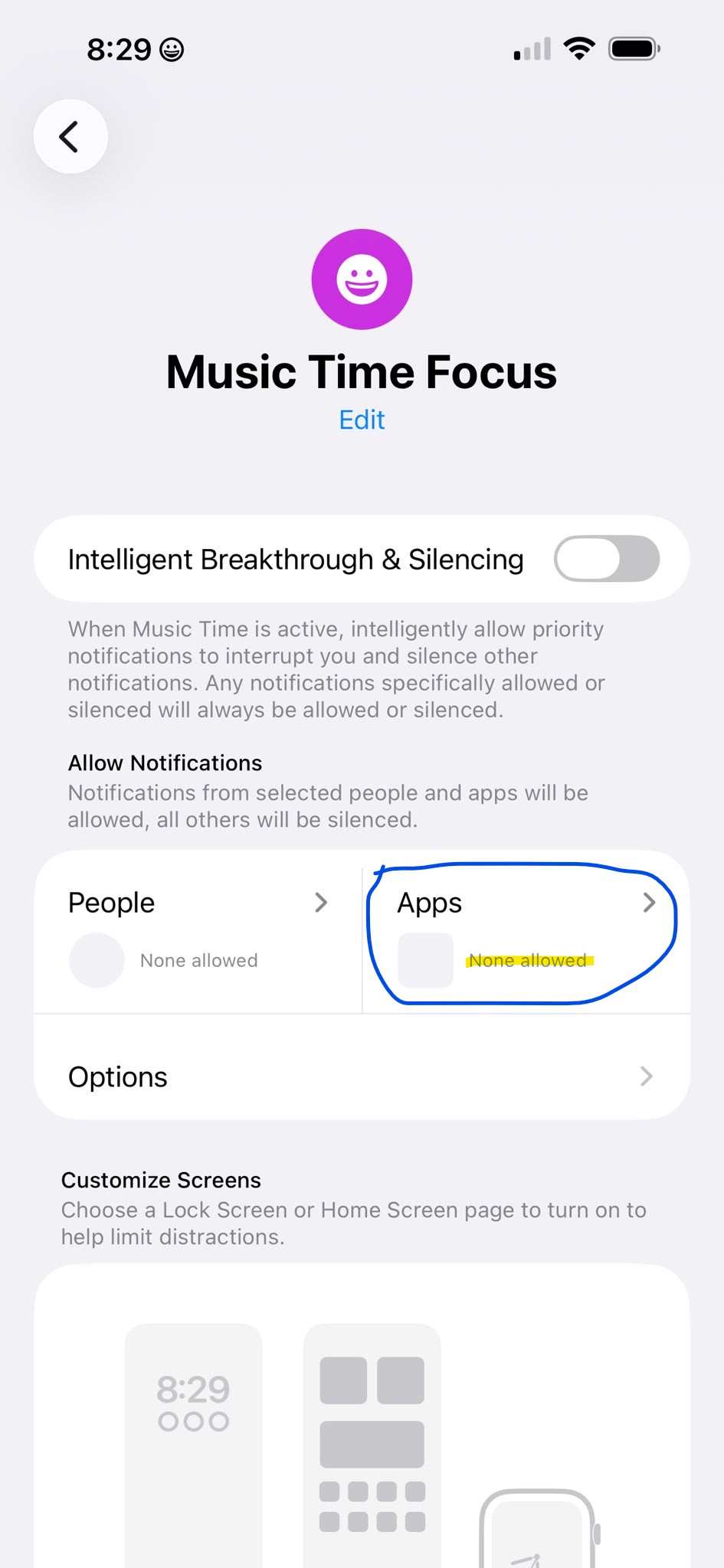
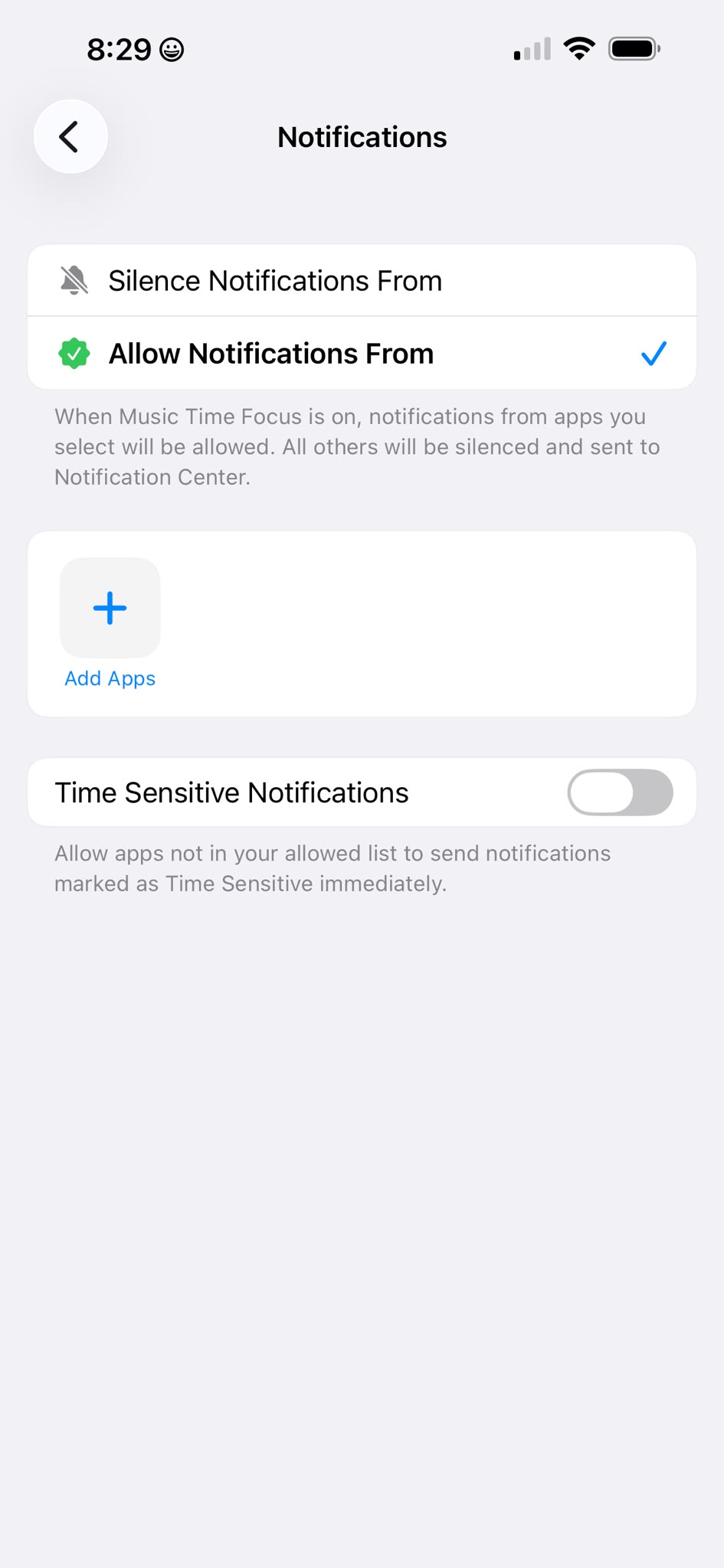
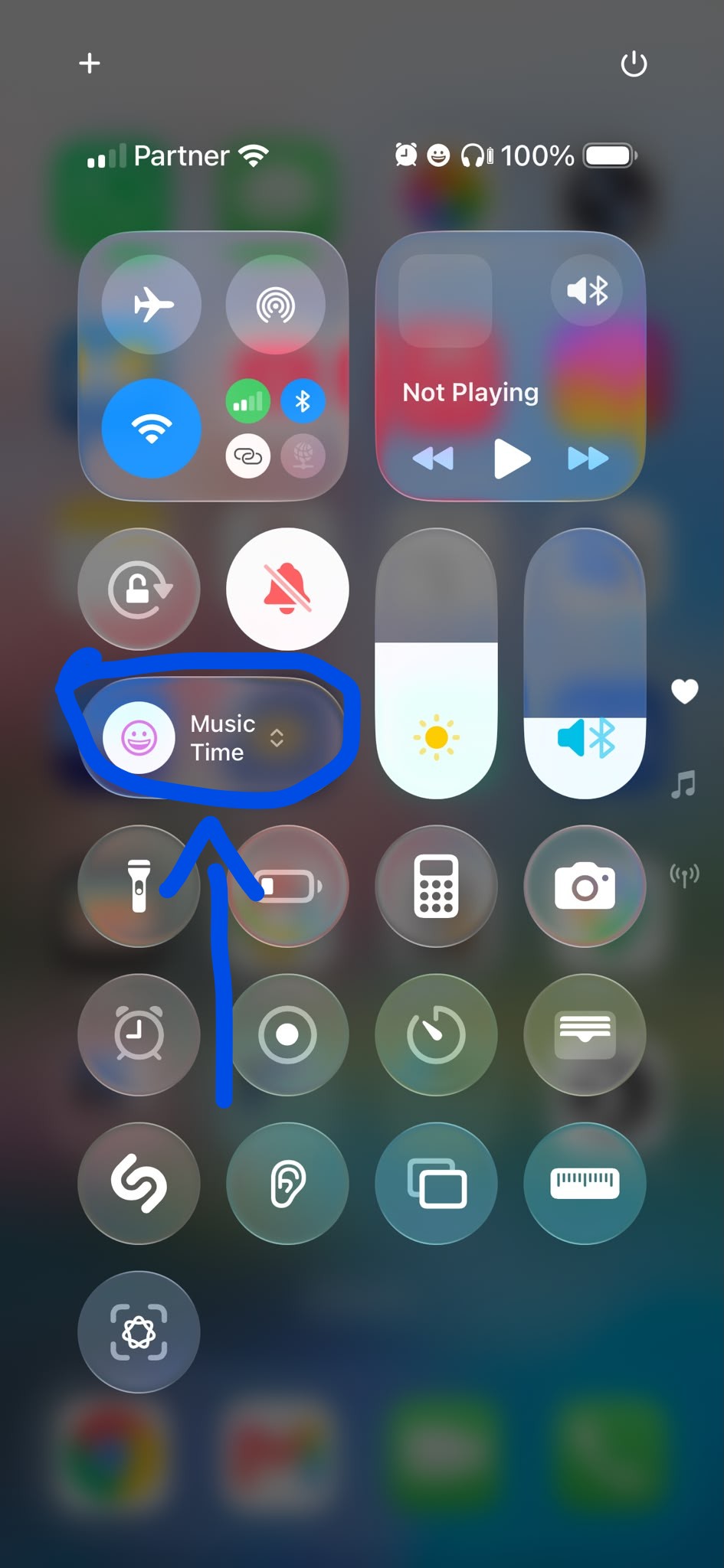
Engage the Shield (Activation): Swipe down from the top-right corner of your screen to open the Control Center, tap Focus, and turn on your newly configured mode before starting your music playlist:
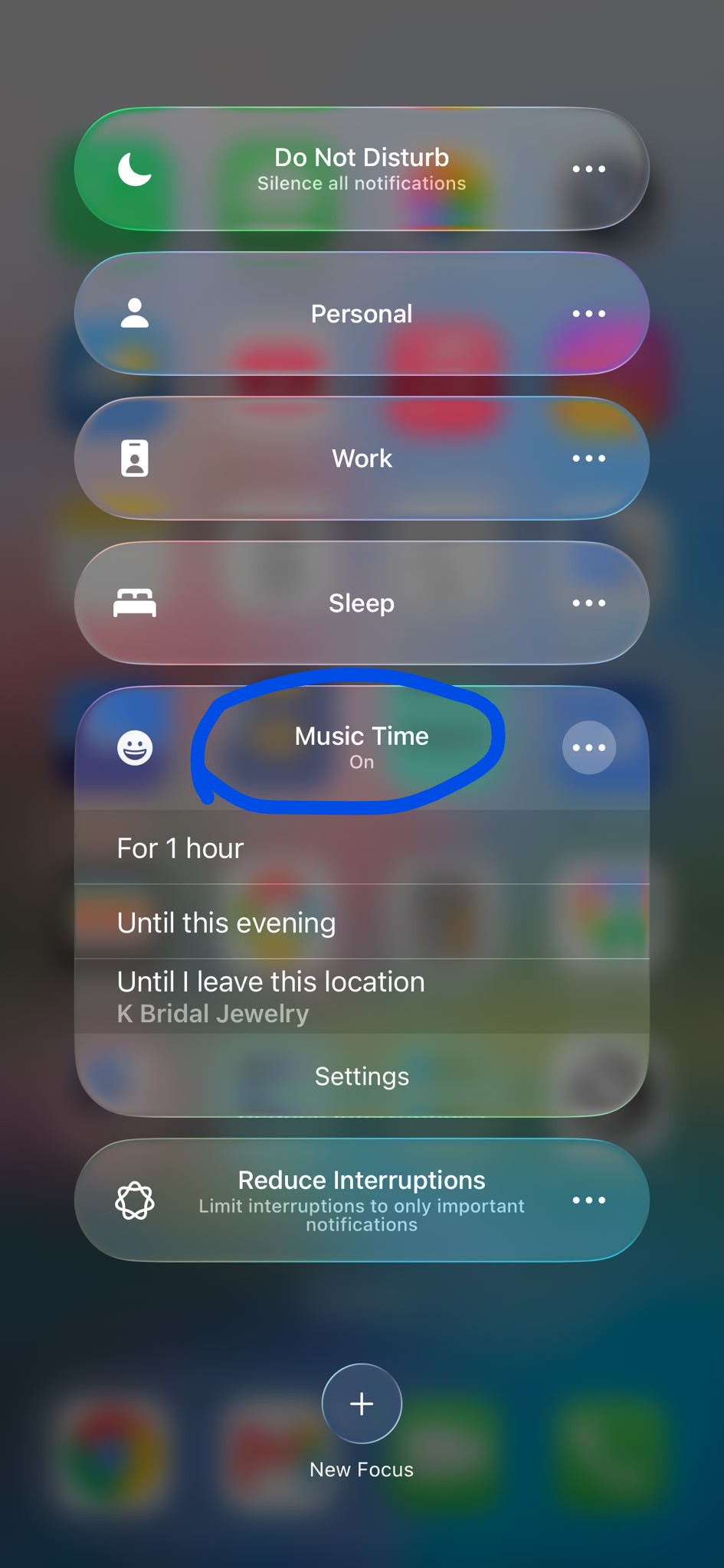
When this is active, incoming calls are instantly shunted straight to your voicemail in the background. Your phone screen won't light up with a call banner, and your music won't drop a single beat.